Schemas define the structure of the data both concretely (e.g. XML schema, database schema) and conceptually (description in terms of classes/types, properties and relations, e.g. UML). HALE’s main job is to abstract a conceptual schema from a concrete schema and to assist the user in mapping concepts from a source schema to a target schema.
In this training, source schemas will be inferred from a PostGIS database, while target schemas will be extracted from XSD files.
If it’s not running, start it by double clicking on the start_postgis.bat batch script (windows) or type in the terminal sudo service postgresql start (linux).
Select File → Import → Source schema… from the menu bar on top.
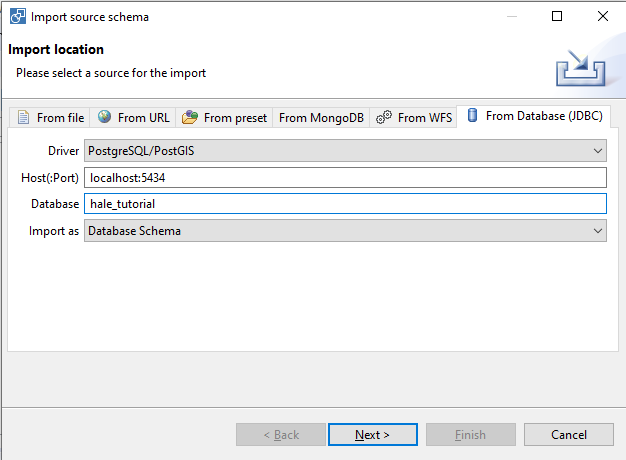
A wizard will open. On the first page of the wizard, click on the From Database (JDBC) tab and populate the form fields as shown in the figure below.
Host(:Port): localhost:5434
Database: hale_tutorial
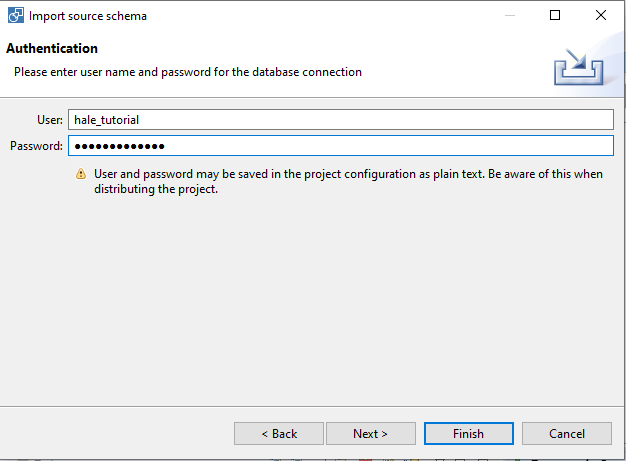
The next page will ask you for credentials to access the database. Enter hale_tutorial as both User and Password.
User: hale_tutorial
Password: hale_tutorial
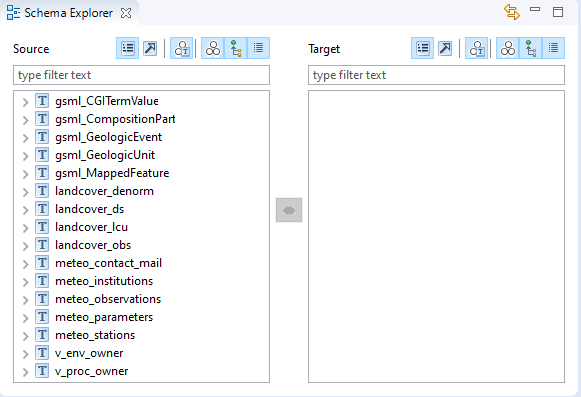
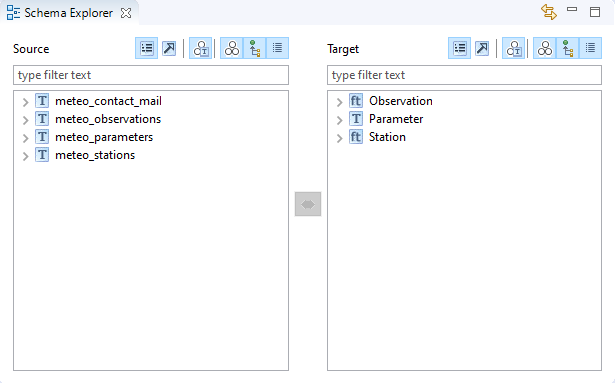
After the schema has been imported, the Schema Explorer view should look like the figure below:
Note that HALE created a new type for each table in the database.
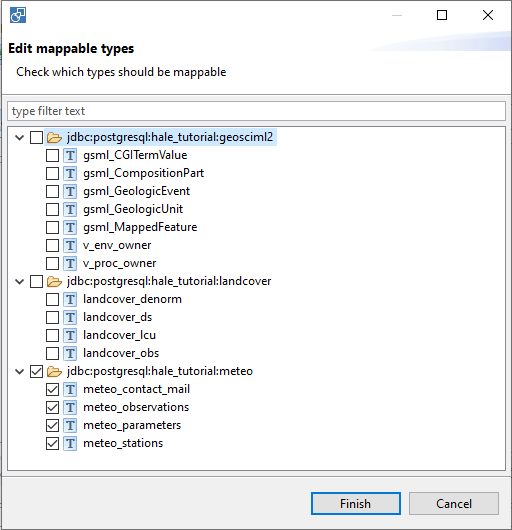
Not all source types are relevant for the mapping we want to create. Select Edit → Edit mapping relevant source types from the menu bar and uncheck the irrelevant types, as shown in the figure below.
Click finish, and now the Source section in the Schema Explorer view should show only the selected types.
See this introductory part for a detailed description of the meteo target schema.
Note
Before importing the target schema, make sure GeoServer is actually running by visiting the URL http://localhost:8083/geoserver. If it’s not running start it by double clicking on the tomcat_start_1.bat batch script. This step also requires internet connectivity.
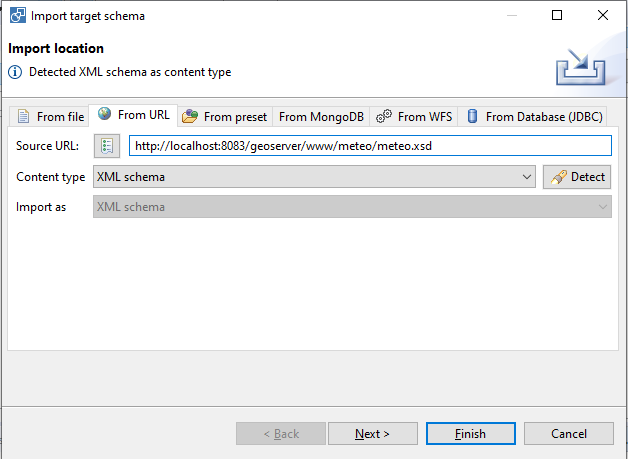
To import the target schema, follow these steps:
Select File → Import → Target schema… from the menu bar on top.